
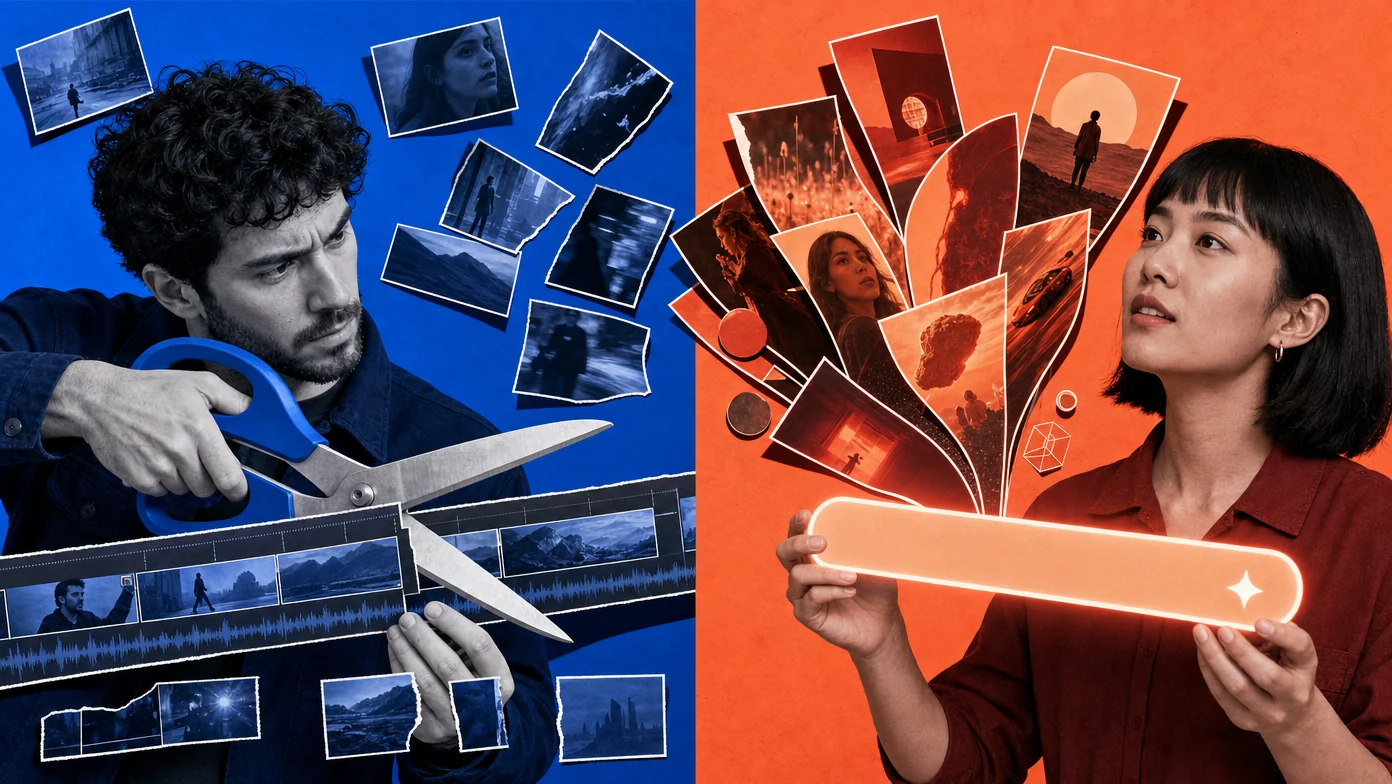
An AI video editor changes, organizes, or finishes video you already have. An AI video generator creates new video from instructions and references such as text, images, audio, or other video.
That distinction describes the task, not necessarily the product. Many current tools do both. ChatCut can edit recorded footage and generate new footage inside the same project; Adobe Premiere, VEED, and Runway also document workflows that cross the category boundary. Choose the capability required for each shot rather than relying on the label in a product name.
The difference in one minute
- Use an AI video editor when you have a podcast, interview, tutorial, screen recording, product demo, or other footage that needs to be cut and finished.
- Use an AI video generator when a required shot does not exist and you want to synthesize it from a prompt or reference.
- Use both when a recorded edit needs generated B-roll, an explainer needs synthetic scenes and a voiceover, or generated shots need to be arranged into a finished sequence.
- Use a generative transformation tool when you have a source clip but want to change its background, lighting, subject, style, or duration. This sits between conventional editing and generation.
The input and the requested change provide a more reliable distinction than the brand’s category.
What is an AI video editor?
An AI video editor applies editing operations to source media. Common jobs include:
- transcribing speech and linking words to the timeline
- selecting, trimming, splitting, and rearranging clips
- removing chosen filler words, false starts, or long silences
- creating and correcting captions
- reframing a landscape video for a vertical output
- cleaning audio, adjusting levels, or separating speech from noise
- finding moments by topic or assembling a first cut from instructions
- adding B-roll, graphics, music, voiceover, and transitions
The defining characteristic is that an existing recording remains the basis of the edit. AI can propose or perform changes, but the editor should leave those changes available for review and correction.
ChatCut’s AI video editor uses conversation, a connected transcript, and a multi-track timeline. A creator can describe a broad edit, adjust individual words or clips, and inspect the result as normal timeline media. Descript’s podcast workflow is another editing-led example: it connects transcript changes to recorded audio and video.
What an editor can produce
An editor can turn a long recording into a shorter episode, a landscape video into a vertical version, or several source files into one sequence. It can also add generated material if that capability exists in the product.
This last point matters: “editor” no longer means “incapable of generation.” Adobe Premiere’s current AI feature page documents video and sound-effect generation directly from the timeline, alongside transcription, audio, color, and reframing tools.
What is an AI video generator?
An AI video generator synthesizes new frames from instructions or references. Depending on the model, the input may include:
- a text description of a shot
- a still image to animate
- first and last frames
- a character, object, or style reference
- an existing video to extend or transform
- audio or a performance reference
The output is newly generated media. That makes generation useful for shots that were never recorded: an establishing shot, product visualization, animated diagram, fictional scene, visual effect, or B-roll illustrating an idea.
Google’s Veo page documents text-to-video, image-to-video, native audio, reference images, scene extension, object changes, and other generative controls. Runway’s product page documents generation as well as tools for transforming, editing, and extending footage.
What a generator still needs
A generated clip is usually an ingredient rather than a complete editorial decision. Someone still needs to choose the useful take, place it in sequence, trim it to the narration or music, match the aspect ratio, add captions or sound, and review the export.
Generation also introduces checks that a conventional cut may not: visual continuity, factual accuracy, unintended objects or text, identity consistency, model-specific usage terms, and whether the audience should be told that a shot is synthetic.
Why the categories overlap
Modern video production often combines four operations:
- Edit: change the timing and structure of source footage.
- Enhance: improve source footage without changing its basic meaning, such as cleaning audio or correcting captions.
- Transform: use a source clip as a reference while generating a changed version of it.
- Generate: create new media for a shot that did not exist.
A single product may support all four. VEED’s AI video workflow, for example, documents generation from text, scripts, images, and existing footage, followed by editing, captions, music, branding, and export.
This overlap means statements such as “an editor cannot generate footage” or “a generator cannot use existing footage” are too broad. The useful question is: Does this product support the exact operation, source format, review control, and output your project requires?
When should you edit, generate, or use both?
You recorded an interview or podcast
Start with editing. Transcribe the recording, correct speaker labels and names, shape the full conversation, remove only the pauses and fillers that should go, then review the cut. Generate B-roll only where a synthetic visual genuinely helps explain the speaker’s point.
You need a shot that was never filmed
Start with generation. Define the subject, action, setting, camera, lighting, duration, and aspect ratio. Use reference media when the model supports it and visual continuity matters. Then bring the selected result into an editing timeline.
You have footage but want to change what appears inside it
Look for generative transformation. Removing an object, changing a background, relighting a scene, or extending a shot creates new pixels while preserving parts of the source. Test the result frame by frame around hands, faces, text, edges, and camera motion.
You want a finished video from a script or brief
You need generation and editing in sequence. The workflow may create scenes, images, voiceover, music, and graphics, but those assets still need structure, timing, review, and export. Confirm whether the product exposes an editable timeline or only returns a rendered draft.
How ChatCut handles editing and generation together
ChatCut supports both tasks inside one project:
- The AI video editor works with uploaded footage through conversation, transcript controls, and a multi-track timeline.
- The AI video generator creates new footage from prompts and supported references.
- Image, voice, music, caption, and motion-graphics tools can create other supporting media.
- Uploaded and generated assets can be arranged and refined in the same timeline.
See generated footage on a real timeline
In this February 13, 2026 ChatCut demo, a fictional sequence plays across three adjacent timeline clips. The original post describes OpenClaw coordinating Seedance 2.0 generation and a match-cut edit. The recording shows the assembled sequence and ChatCut editor; it does not show every generation request or the full review process.
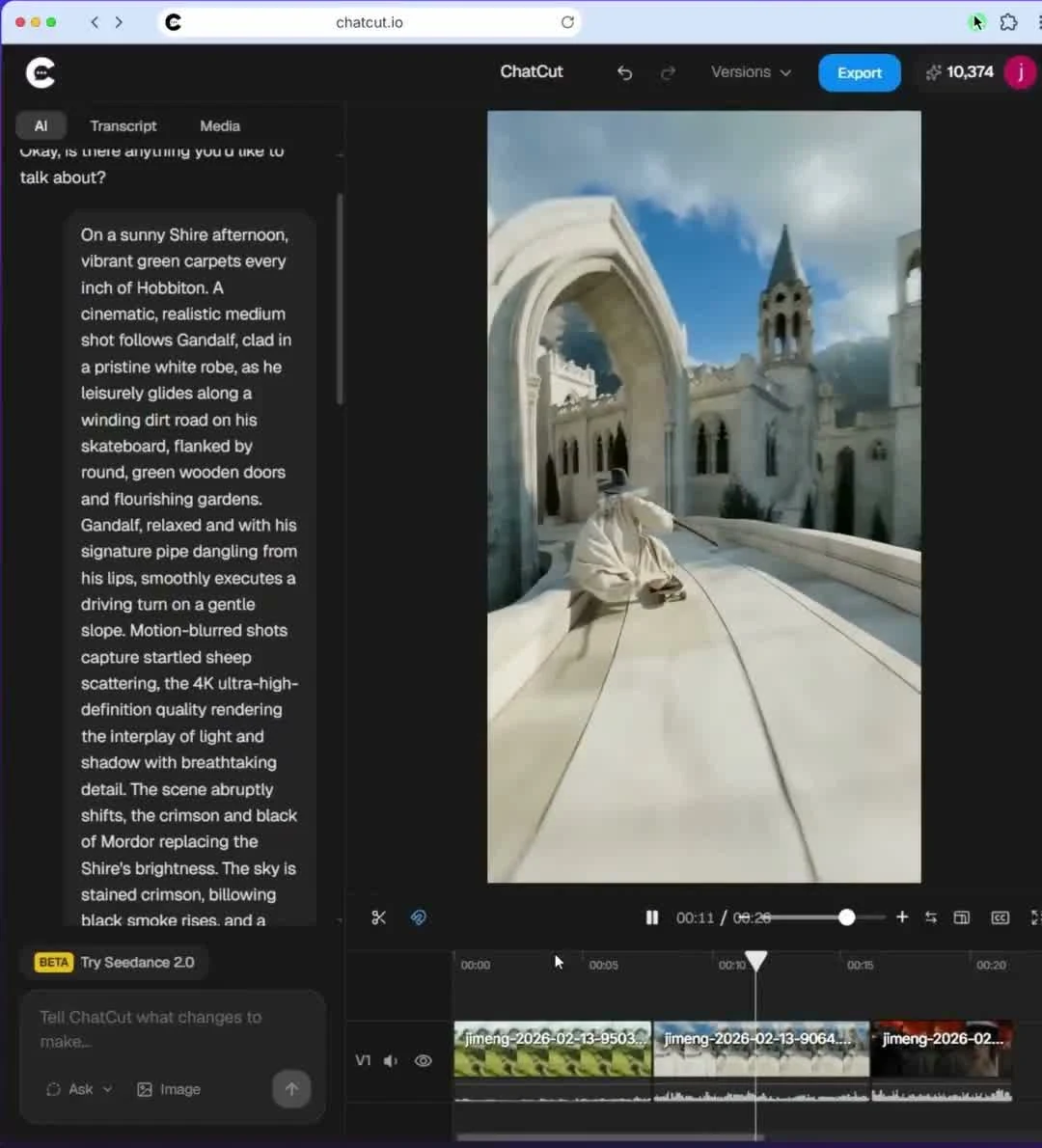
Watch the original generation-and-editing demo on X.
For your own project, define each missing shot, generate it, review the result, then place the selected clip in the edit. The current Video Gen guide explains how to submit a generation job, follow progress in My Assets, and drag the finished video to the timeline. The Timeline guide covers arranging, trimming, and splitting clips. Check supported inputs and the credit estimate in the editor before generating.
A combined interview workflow could look like this:
- Import and transcribe the recorded conversation.
- Build and review the spoken-content cut.
- Mark places where a cutaway or explanation is missing.
- Generate or import the required B-roll, image, graphic, voice, or music.
- Place those assets on the timeline and adjust their timing.
- Review factual fit, visual continuity, captions, audio, and the final export.
ChatCut’s generation-mode documentation explains how generation modes differ, while its video-generation model guide documents the available model choices. Model availability and limits can change, so use the current in-product options and documentation when planning a project.
How to compare products that claim to do both
Use a small project that contains one real edit and one missing shot. Then check:
- Source handling: Can the product import the formats, duration, and track structure you use?
- Edit control: Can you inspect and correct the AI’s cuts, transcript, captions, timing, and framing?
- Generation inputs: Does the model accept the text, image, video, audio, or character references your shot needs?
- Timeline integration: Does generated media arrive as an editable clip in the same project?
- Regeneration cost: Can you revise one shot without rebuilding or re-rendering the whole video?
- Output and handoff: Can you export the required video, audio, subtitle, transcript, or project format?
- Terms and provenance: Do the current terms cover your intended use, and can you identify generated material when needed?
Avoid choosing from a feature checklist alone. Generate one difficult shot, correct one AI editing decision, and inspect the exported result.
Method and disclosure
The demo still and current generation-to-timeline instructions were checked on October 14, 2026. The example is an owned historical product recording, not an independent review or a new end-to-end test.
The ChatCut editorial team reviewed the linked first-party product pages and ChatCut documentation on October 13, 2026. ChatCut publishes this guide and is one of the products discussed. We did not run a controlled benchmark of output quality, accuracy, speed, or cost across these products. Product capabilities, models, limits, and terms can change, so verify the linked official sources and test your own media before committing a workflow.
Frequently asked questions
What is the difference between an AI video editor and an AI video generator?
Can an AI video editor generate new footage?
Can an AI video generator edit an existing video?
Does ChatCut edit videos or generate videos?
Should I edit or generate B-roll?
Do I still need a timeline when AI generates a complete draft?
Choose the operation before the tool
Start with the source and the change you need. Existing footage that needs structure calls for editing. A missing shot calls for generation. A changed version of a source clip calls for generative transformation. A finished production often combines all three.