

AI Motion Graphics Generator: Editable Animation Workflow
An AI motion graphics generator turns a description into an animated title, lower third, chart, diagram or overlay. For video editing, the useful question is what you can change after generation: the words, visual style, placement and animation need to work with the rest of your edit.
In ChatCut, Motion Graphics sit on the same timeline as footage, audio and captions. You can create a new graphic with AI or start from Templates, use a Design Style for consistent visuals, and request revisions in context. This guide explains that documented workflow and what to inspect before using the result.
What does an AI motion graphics generator do?
Motion graphics animate designed elements such as text, shapes, logos and data. Examples include a speaker’s name appearing over an interview, a chart building during an explanation, or a product callout arriving beside a demonstration.
ChatCut’s Motion Graphics documentation covers titles, lower thirds, callouts, charts, diagrams and animated overlays. These graphics are part of an AI video editor, so you can judge their timing and readability against the actual video rather than designing them in isolation.
An editable graphic and a rendered video file serve different purposes. A rendered clip can still be trimmed, layered or given new overlays in an editor, but its internal lettering and layout are baked into the pixels. An editable Motion Graphic supports changes to its design through exposed controls or Agent revisions. Exporting that graphic to a movie file creates a rendered delivery version.
ChatCut can also generate footage. Use generation for a new shot and Motion Graphics for designed titles, labels or explanatory visuals, then assemble both on the timeline. See AI video editor vs. AI video generator for the workflow distinction.
How does an AI motion graphics generator work in practice?
Start with one concrete asset, such as a lower third for an interview, rather than asking for every graphic in a finished video at once.
1. Prepare the content and placement
Gather the final text, accurate numbers, logo or images. Decide when the graphic should appear, how long it should remain, and where it should sit in the frame. If it refers to existing footage, use the composer’s @ references to identify the relevant clip, time or transcript selection.
For example:
Create a four-second lower third at 00:12. Use "Maya Chen" as the name and "Product Designer" as the title. Place it in the lower-left corner with room around the text. Use a dark background and white text, slide it in gently, then fade it out.This is an example brief, not a guarantee of an identical result. Check the output against your footage, especially faces, existing captions and any important screen content.
2. Choose a template or generate a new design
Check Templates first. Preview a suitable card and select Add to timeline, or drag the card onto the timeline. Use with AI attaches a template to the current AI draft when you want the Agent to work from it.
When a template does not fit, describe the content, hierarchy, colors, movement, duration and position in an AI request. If a generation confirmation appears, review its estimate before allowing it. The current creation instructions describe this flow; they do not promise a fixed completion time.
3. Review the graphic in the edit
Play the relevant section in the Viewer. Check that the graphic enters at the right point, stays readable long enough, and leaves room for the video. Review exact spelling and chart values before considering animation polish.
If the result needs work, reference that graphic and give a specific revision:
Update @current-motion-graphic: change the title to "Design that ships", make the accent blue, and reduce the headline size so it fits on two lines. Keep the animation and timeline position unchanged.Select the actual graphic when supplying the reference. Clearly stating what should stay unchanged gives the Agent useful revision context.
4. Use direct controls where available
The current docs distinguish product surfaces. ChatCut Desktop 0.3.13 or later supports direct element selection in the Motion Graphics Editor. Select a graphic on the timeline, hover over editable elements in the Viewer, then select an element to adjust its exposed properties or drag it to reposition it. Press Esc to close the controls and exit graphic editing.
On other surfaces, or for a structural or animation change without a direct control, ask the Agent to revise the graphic. The available controls depend on the graphic; do not assume every animation exposes the same parameters. See Edit in the Motion Graphics Editor.
How do I keep a series of graphics consistent?
Use Design Style below the AI composer for reusable visual direction. A style can contain colors, fonts, logos, reference images and written guidance. The prompt still supplies the content and movement for the individual request.
Choose a Featured style or create a personal one in My Styles. To adapt a Featured style, use Customize style, edit its visual assets and guidance, then save the personal copy. A concise style guide might say:
Use our navy and cream palette, a clear headline hierarchy, generous spacing and restrained slide-and-fade motion. Keep charts legible on a phone and leave space for captions.Applying a style guides graphics generated afterward. It does not automatically restyle graphics already on the timeline. Revise existing graphics separately and preview the series for consistency. Follow the current Design Styles / My Styles instructions instead of relying on an undocumented command flag.
When a finished graphic should become a reusable starting point, select it in My Assets, open its context menu and choose Add as template to Favorite. This creates an entry under Templates → Favorite while keeping the original asset in its project. A reusable template and a Design Style serve different roles: one supplies a starting graphic, while the other supplies visual direction.
Recorded example: a website as a design reference
In our June 17, 2026 @chatcutapp recording, a website link is supplied as a visual reference. The Agent’s plan describes red, blue and yellow blocks, black grid lines and a shared layout direction for several motion-graphic cards. Later previews show that palette and grid treatment in the generated designs.
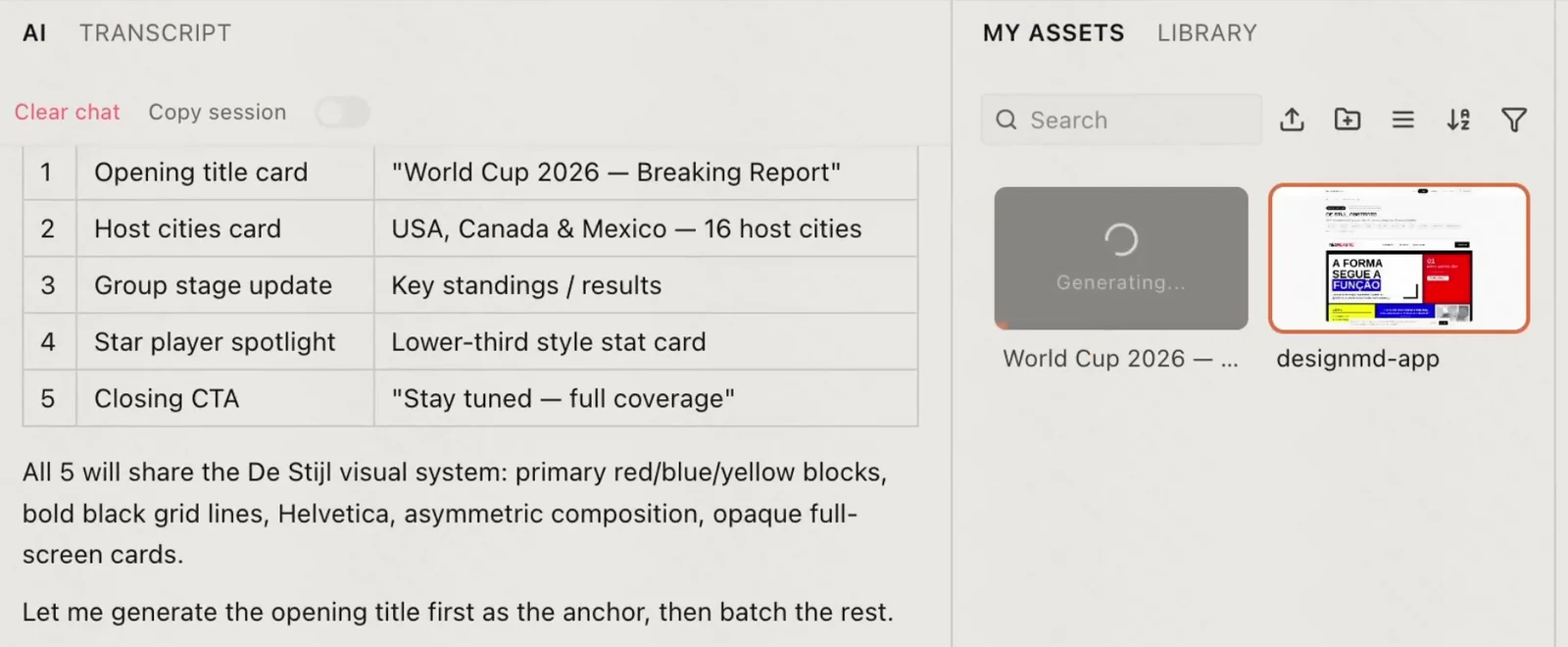
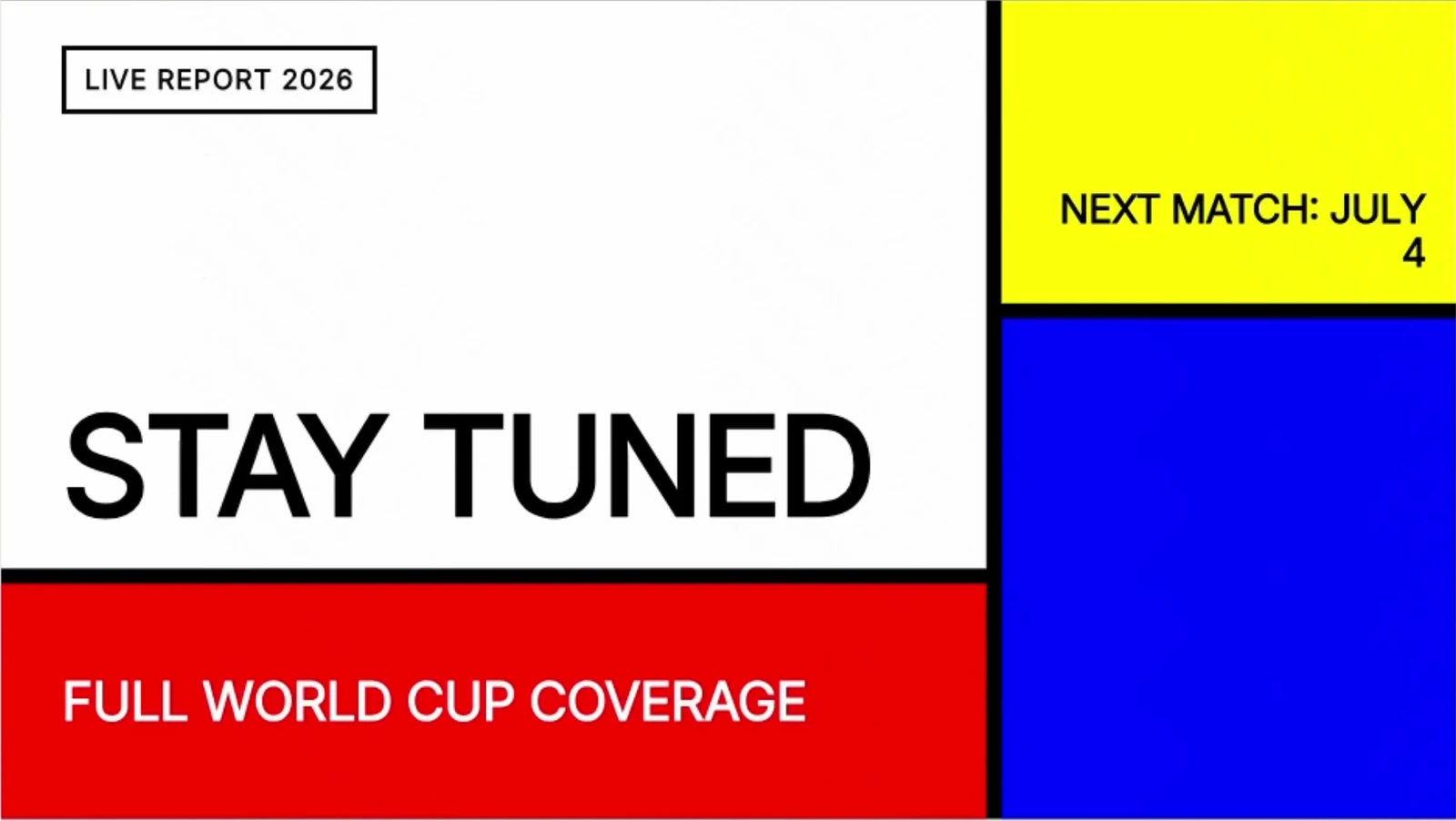
For a similar brief in the current product, open Design Style → Create Design Style and add your approved colors, fonts, logos, reference images and Style Guide. Save the style and apply it to guide subsequent AI-generated graphics. Use the prompt for each graphic’s content and motion. Follow the current Design Styles instructions for the available controls.
This recording illustrates the reference, plan and previews. It does not establish processing time or show a saved style being reused in a second project. Check the typography, colors, content and readability of your own result before using it in a finished video.
Can I export motion graphics with a transparent background?
Yes. ChatCut’s Export → Graphics renders each Motion Graphic on the active timeline as a separate ProRes 4444 .mov file with an alpha channel. It requires Pro. Review the graphics listed in the export panel, start the export, then download the completed files from the export queue.
This is not a transparent export of the entire timeline. Normal video clips, captions and the rest of the timeline are not included in those individual files. Check the receiving editor’s format support and preview the imported overlay over real footage. The transparent Motion Graphics export documentation explains the scope and entitlement.
For a timeline handoff, use the separate Premiere / DaVinci XML or editable Jianying / CapCut draft workflow and review its graphics options.
What should I check when choosing a generator?
A short project with your own content reveals more than a generic demo. Compare tools on the task you need to finish:
- Revision: can you correct text, values and layout after generation?
- Context: can you preview the graphic with your footage and captions?
- Consistency: can you reuse visual guidance and a suitable starting graphic?
- Delivery: can you export the required format, transparency and timeline handoff?
- Review effort: how much adjustment does the result need before it is readable and accurate?
A dedicated animation or compositing tool may suit a project that requires precise manual control over every layer and keyframe. AI-assisted creation can be useful when a clear brief and iterative revisions fit the job. This guide does not establish equivalent quality, faster production or lower total cost across tools.
Frequently asked questions
Can I make motion graphics without writing code?
ChatCut’s documented workflow starts with a description or a Template. Request changes through the Agent, and use direct element controls on supported Desktop versions. You still need to review the design, content and timing.
Does every revision cost zero credits?
Do not assume that every revision is free. Changing an exposed property and asking an Agent to generate or revise an asset are different operations. Check any estimate shown in the product and the current credits documentation for recorded usage. This article does not quote a fixed cost per graphic.
Does a new Design Style change my existing graphics?
No. The selected style guides subsequent AI-generated graphics. Ask for revisions to graphics already created and review them individually.
Can I reuse a graphic in another video?
Save an eligible graphic as a Favorite template, or export the rendered graphic for the receiving workflow. An exported .mov is a delivery file; it does not preserve the original graphic’s editable controls.
Sources and editorial method
The ChatCut team reviewed its current Motion Graphics, Design Styles and transparent export documentation on October 14, 2026. ChatCut publishes this guide and is the product discussed. These are documented instructions and illustrative prompts, not a timed benchmark or an independent comparison of competing products.
The website-reference example uses sampled frames from the linked June 17, 2026 ChatCut screen recording. The stills are cropped from that recording; they are not reconstructed product UI. Present-day instructions follow the current docs above.